Step 1: Navigate to Domain Registration Page
- Start by visiting the MaxAPEX homepage.
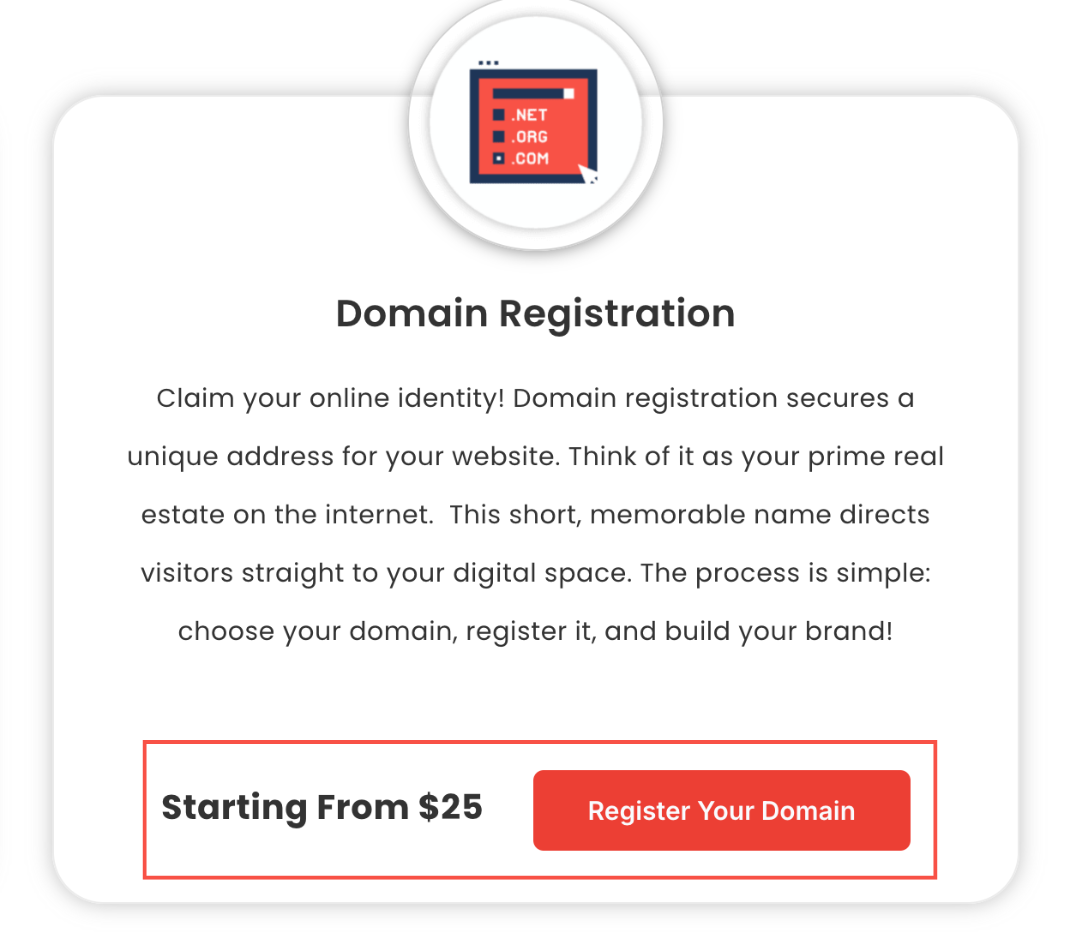
- On the homepage, find and click on the "Domain Registration" option under the MaxAPEX Add-ons menu.

Step 2: Begin Domain Registration
- Click on "Register Your Domain" to start the registration process.
Step 3: Search for a Domain Name
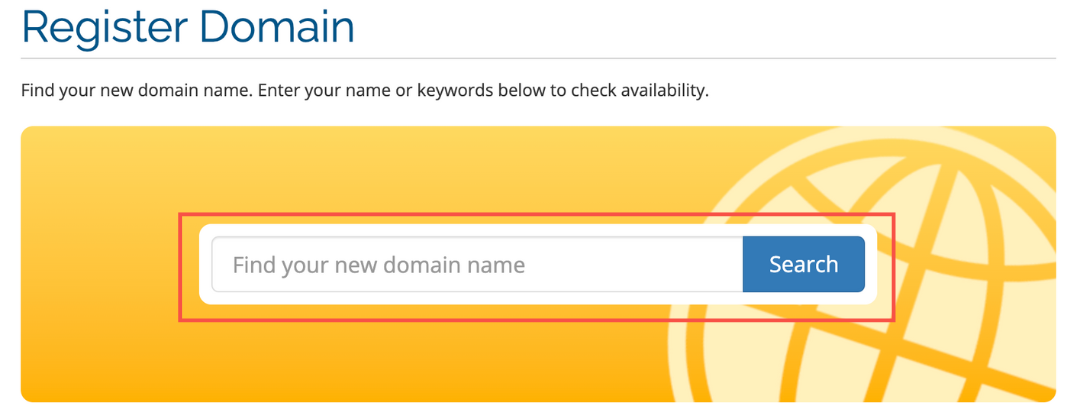
- Enter your desired domain name or keywords in the search box to check availability.
Step 4: Select Your Domain
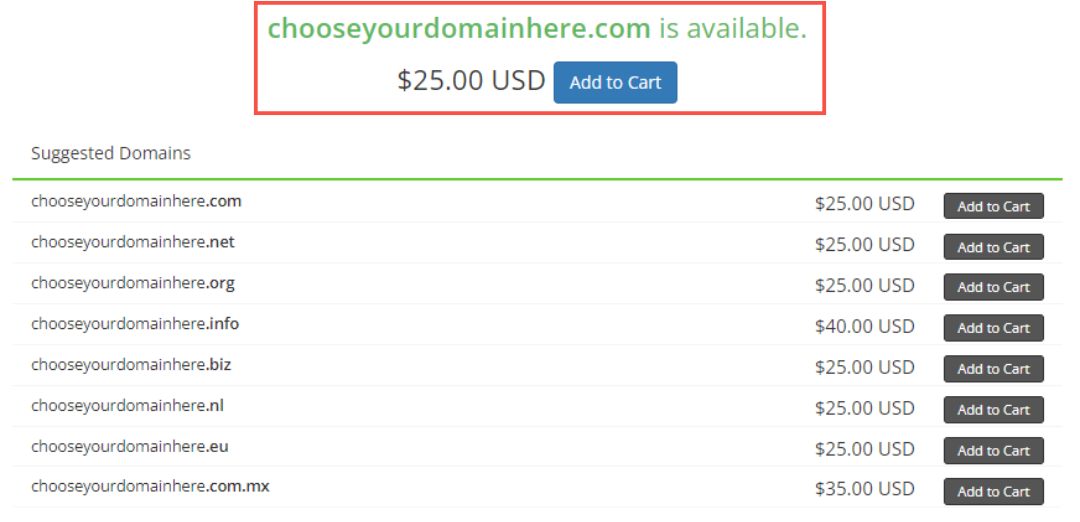
- From the list of available domains, choose your preferred domain. For instance, if 'chooseyourdomainhere.com' is available, you can add it to your cart.
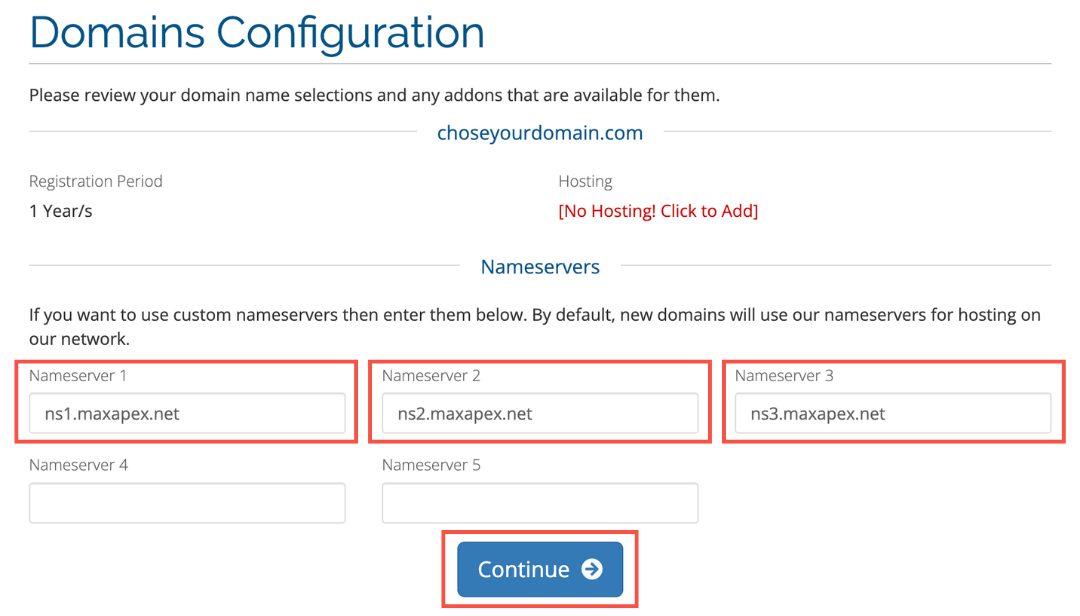
Step 5: Domain Configuration
- If you wish to use custom nameservers, enter their details; otherwise, MaxAPEX will assign default nameservers.
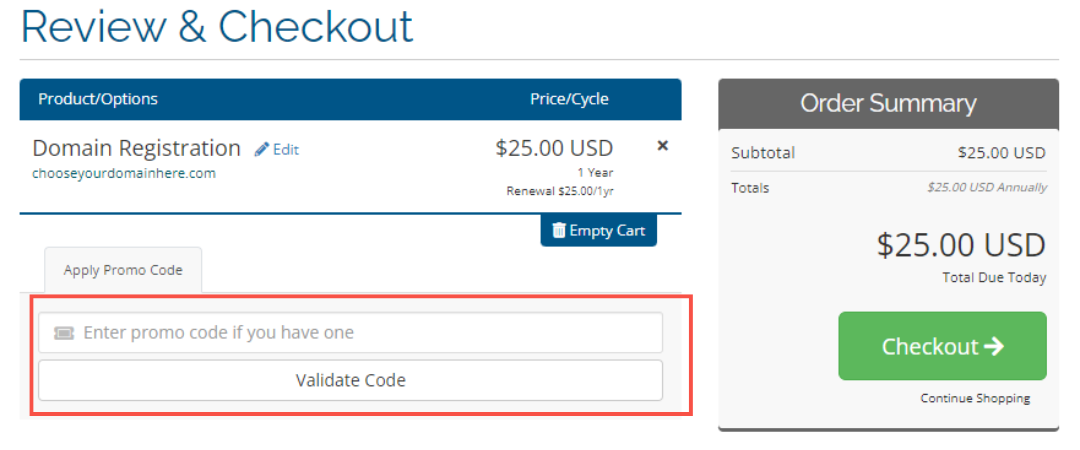
Step 6: Apply a Promo Code if you have one, and Review your Cart
- Enter your promo code if you have one.
- Review your cart details including the price.
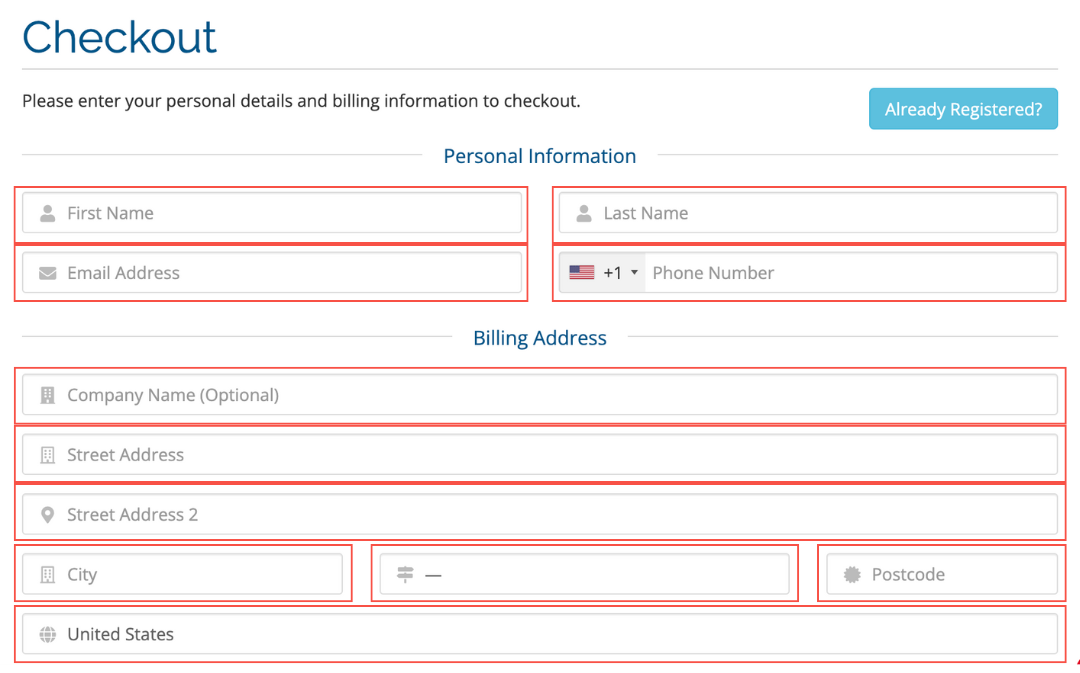
Step 7: Enter Personal and Billing Information
- Provide your first and last name, email address, phone number, and billing address.
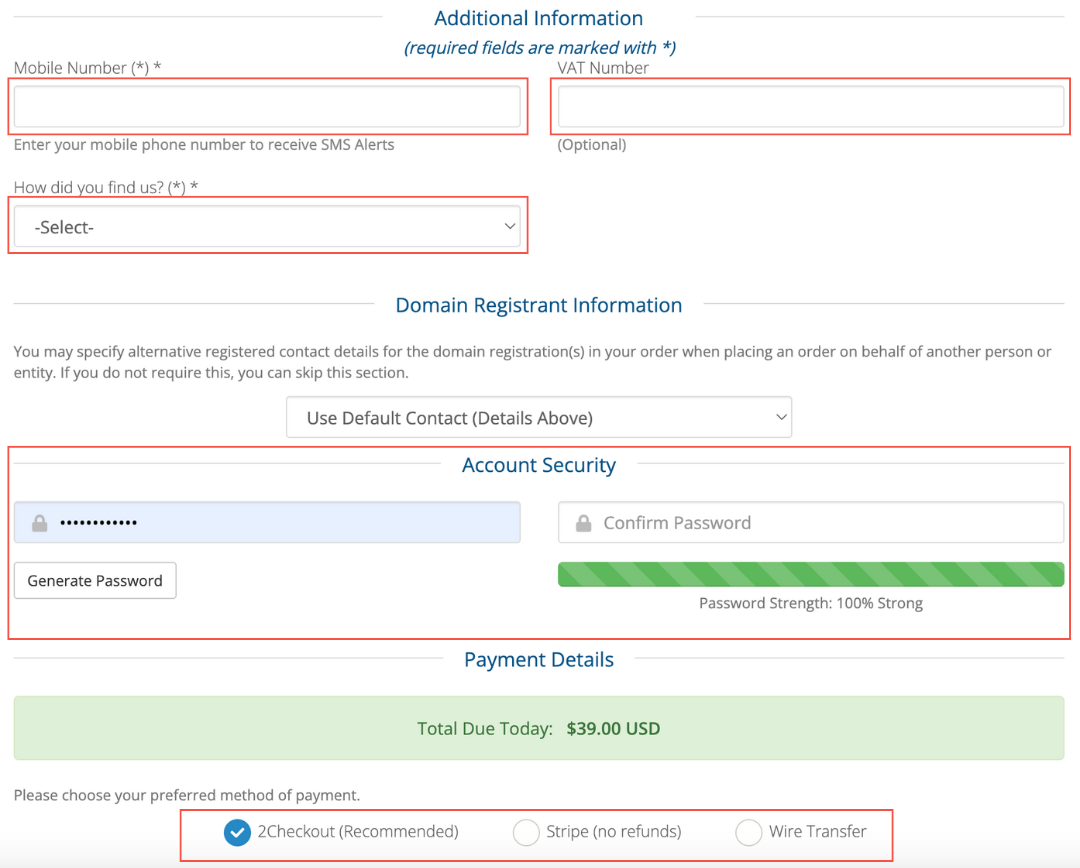
Step 8: Additional Details and Payment
- Fill in any additional required fields such as mobile number and how you found MaxAPEX.
- Choose your payment method.
Step 9: Finalize Your Order
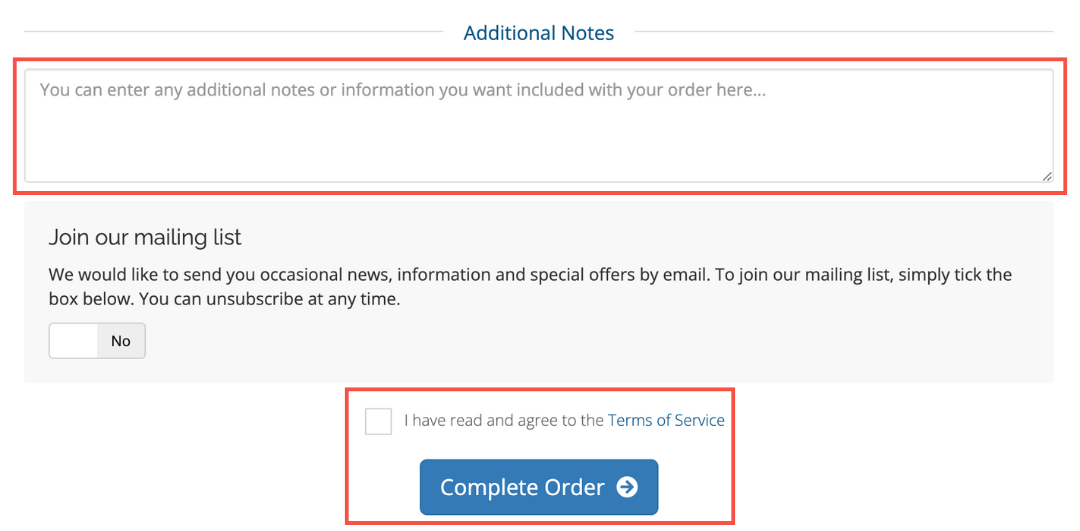
- Optionally, add any additional notes relevant to your order.
- Agree to the terms of service and join the mailing list if desired.
- Click on "Complete Order" to finalize the purchase.